Configuring IBM Security Network Protection Parent topic

Procedure

  1. On the IBM XGS console, do the following to configure the generic agent:
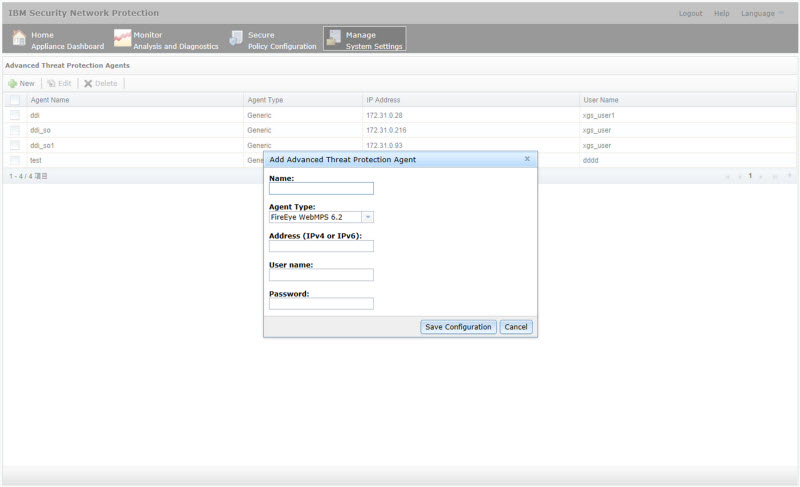
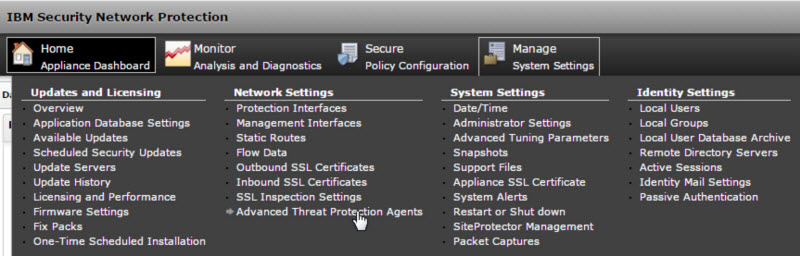
    1. Go to Manage System SettingsNetwork SettingsAdvanced Threat Protection Agents.
      admin_intgr-prods_se123456789.jpg
      The Advanced Threat Protection Agents window opens.
    2. Click New.
    3. Provide the following information:
      • Name: Type a name
      • Agent Type: Select Generic
      • Address: TippingPoint Advanced Threat Protection for Email management port IP address in IPv4 or IPv6 format
      • User name: Existing authentication credential
      • Password: Existing authentication credential

      Valid Character Sets

       
      User name
      Password
      Minimum length
      1 character
      1 character
      Maximum length
      15 characters
      15 characters
      admin_intgr-prods_se12345678910.jpg
  2. Click Save Confirmation.
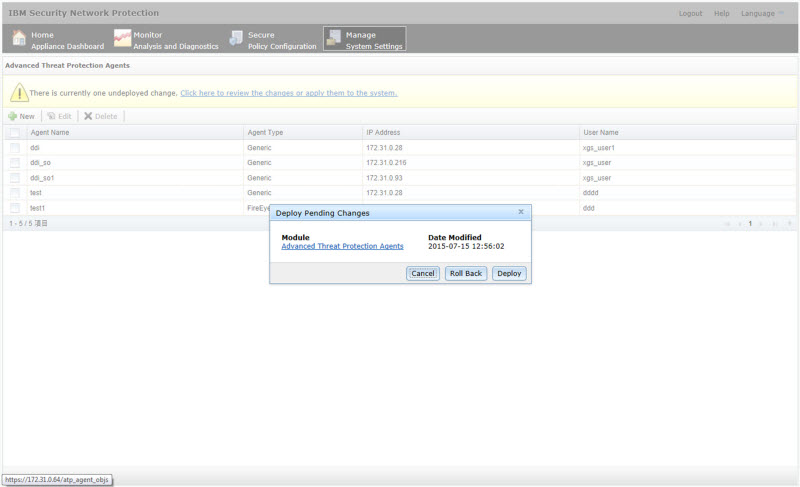
    The Deploy Pending Changes window opens.
  3. To apply changes to IBM XGS, click Deploy.
    admin_intgr-prods_se123456789111.jpg
    The new agent appears in the Advanced Threat Protection Agents list.
  4. On the TippingPoint Advanced Threat Protection for Email management console, go to AdministrationIntegrated Products/ServicesAuxiliary Products/Services.
  5. Select Configuring IBM Security Network Protection (XGS).
  6. Under Object Distribution, select Enable.
  7. Under Server Settings, provide the following information:
    • Server name
      Note
      Note
      The server name must be the IPv4 address of the auxiliary product.
    • User name: Existing authentication credential
    • Password: Existing authentication credential

    Valid Character Sets

     
    User name
    Password
    Minimum length
    1 character
    1 character
    Maximum length
    15 characters
    15 characters
  8. (Optional) Click Test Connection.
  9. To send object information from TippingPoint Advanced Threat Protection for Email to this product/service, configure the following criteria:
    • Object type:
      • Suspicious Object
        • IPv4 address
        • URL
    • Risk level:
      • High only
      • High and medium
      • High, medium, and low
  10. Click Save.
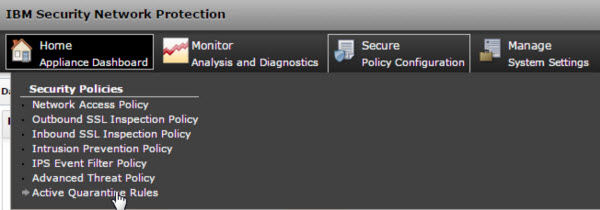
  11. (Optional) On the IBM XGS console, go to Secure Policy ConfigurationSecurity PoliciesActive Quarantine Rules to view suspicious objects and C&C callback addresses sent by TippingPoint Advanced Threat Protection for Email to IBM XGS.
    admin_intgr-prods_se1234567891112.jpg
    Note
    Note
    Suspicious objects with a low risk level do not appear in the IBM XGS Active Quarantine Rules. To view all suspicious objects sent by TippingPoint Advanced Threat Protection for Email, go to Security Policy ConfigurationAdvanced Threat Policy and specify the following settings:
    • Agent Type: Generic
    • Alert Type: Reputation
    • Alert Severity: Low
    Suspicious objects and C&C callback addresses distributed by TippingPoint Advanced Threat Protection for Email are displayed.